Curate Content
The Curate function allows you to add content from an existing source, such as a blog or news site. Viewpoint will retrieve the metadata from the article and automatically populate a number of fields along with pulling in an image.
Curating Content
- Go to the Admin Menu
- Click Content > Curate >
Add Content
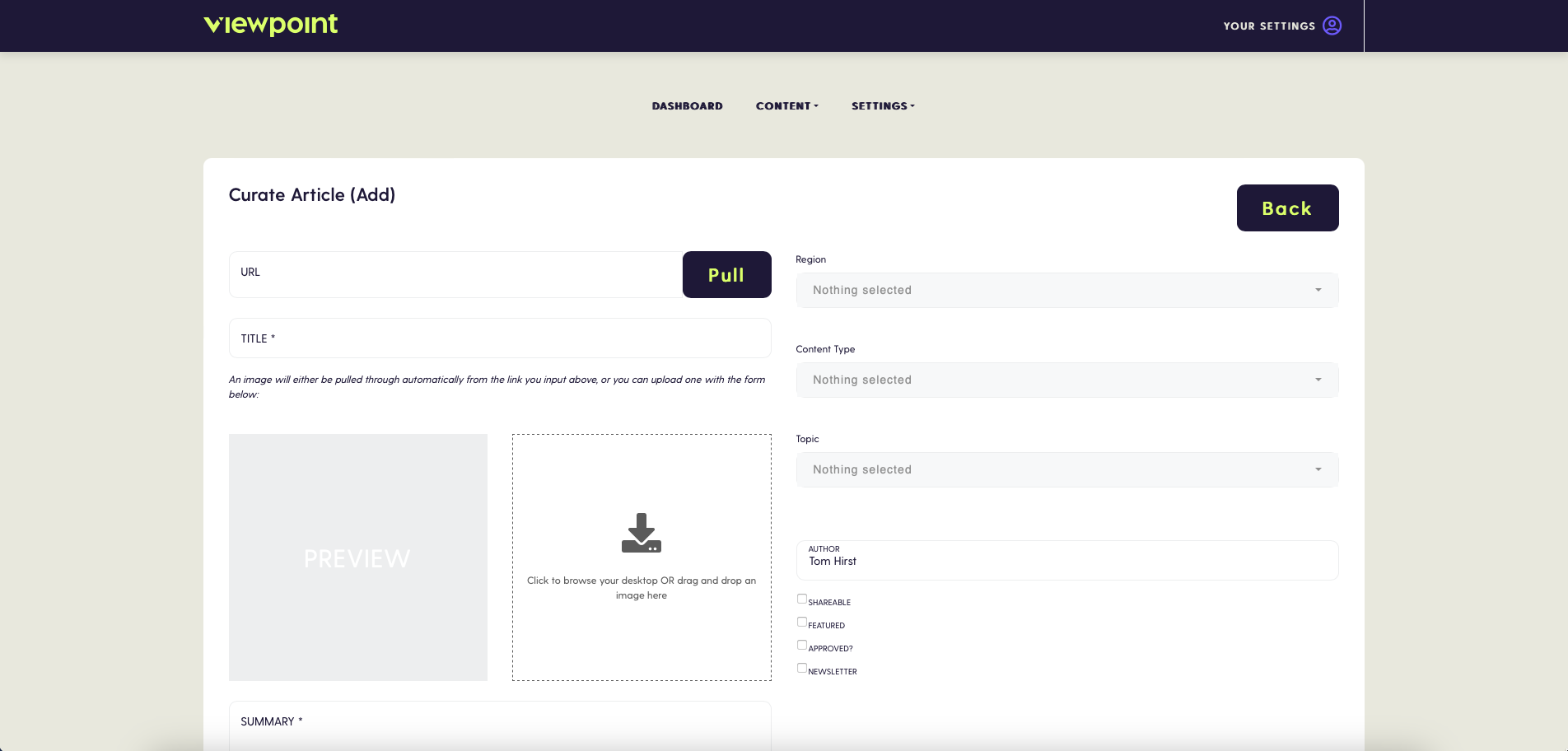
- Enter the URL you would like to curate
- Click Pull - This will then populate the Title, Image and a summary in the WYSIWYG editor.
- Use the WYSIWYG to edit the suggested summary - You can use the style toolbar to add styles to your content, such font size, bold, underline etc.

Tagging Content
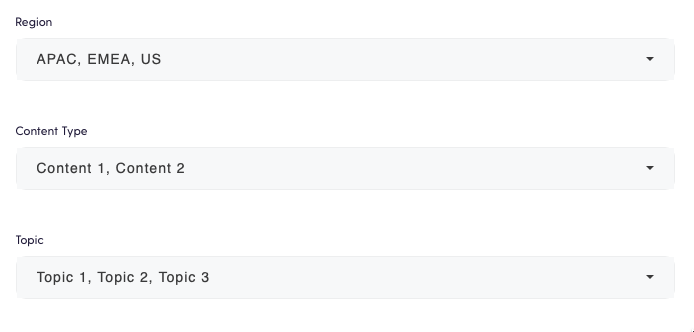
- Use the tag multi-select fields to tag your content accordingly - See Tagging for more information about tags
- Change the Author name if required
Content Options
- Set the article options: (Some of these may be disabled in your system, speak to your system administrator to get them enabled)
- Shareable - If enabled, this will allow your subscribers to share this content externally via LinkedIn, Twitter or Email
- Featured - If enabled, This will add the content to the featured section of the subscriber homepage Remember, the featured section on the homepage only contains the 3 most recent ‘featured’ content
- Newsletter - If enabled, This will add the content to the next Weekly Newsletter Remember, the newsletter only contains the 8 most recent pieces of content that are ‘Newsletter’ enabled
- Approved - If an article is marked as approved it will be published immediately, if not an email will be sent to your content approvers
- Once complete, click
PublishorSubmit for Approval- This option will vary dependant on whether the article has been approved See Approval or more information on approving content